 |
Navigating the Mental Health Internet |
Medline is a very powerful tool for obtaining the latest diagnostic and treatment findings, and it is free and easy to use. Medline (MEDlars onLINE) is a computerized bibliographic database of citations to published healthcare journal articles maintained by the National Library of Medicine (NLM). The bibliographic database covers the fields of medicine, nursing, dentistry, veterinary medicine, the health care system, and the preclinical sciences. It contains bibliographic citations (e.g., authors, title, and journal reference) and author abstracts from over 3900 biomedical journals published in the United States and 70 foreign countries. Medline currently contains over 10 million records dating back to 1966. While medical information is available from many sources, such as magazine articles, books, and web sites, Medline is considered a very authoritative resource because most of the Medline journals use peer review to determine articles scientific validity. While Medline is available for free on at least 20 web sites, PubMed is the web interface designed by the National Library of Medicine (NLM) which maintains Medline. NLM designed PubMed for searching over the Internet. PubMed provides a variety of search modes. You can run a simple search by entering one search term in the query box, or construct complex search strategies using Boolean commands and a search menu interface. Despite the enormity of the Medline database, it is easy to search. You will almost always be able to find what you want using simple search terms. In a couple of hours of practice and reading of the online PubMed Manuals, you can become a power user, taking advantage of MeSH index terms, field searches, and Boolean connectors. However, even as a search novice, you will be able to conduct effective searches. Basic Search Mode Jones AL (no commas, initials are optional)
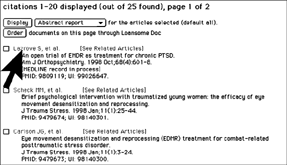
Citations in PubMed will have a [See Related Articles] link to the right of the author. Clicking on this link results in the conduct of another search in Medline for articles which are most closely related to the original article. PubMed compares words from the Title and Abstract of each citation, as well as the MeSH headings assigned, using a powerful word-weighted algorithm. The Related Articles citation display is in rank order from most to least relevant. The citation you linked from is displayed first. This is a very powerful yet simple way to refine your search. For example, if you were conducting the search for the case described in Lesson Two for the Sexually Abused Man with PTSD and Sleep Problems, and you entered EMDR and PSTD, you would find a number of articles on combat-related PTSD, morbid jealousy, and survivors of a natural disaster. But there is one record for the article, A controlled study of eye movement desensitization and reprocessing in the treatment of posttraumatic-stress disordered sexual assault victims, by Rothbaum BO. By clicking on the [See Related Articles] link to the right of the author, you will conduct another search for articles closer to the topic of emdr and sexual abuse.
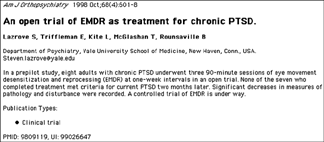
Find the article by Lazrove S Click on the author name. The Abstract Report looks like this: An open trial of EMDR as treatment for chronic PTSD. Click on [See Related Articles] to see how this refines the search
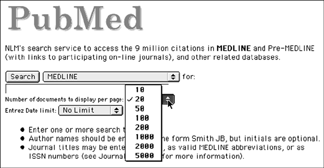
Multiple Pages Number of citations on each page
Entrez Date is the date that a record was initially added to PubMed. Use the pull-down menu to limit to a pre-selected range of days or years. If you do not specify a date range, PubMed searches for citations entered into the database from 1966 to the present. Printing PubMed Records Consider changing the Documents Per Page option to display all of your citations on one web page and then print them all at once.
Medline only contains abstracts of articles. The Order Documents feature allows you to use an automated document ordering program called Loansome Doc to electronically order the full text of a citation from a Loansome Doc participating library in your area. There are other online document delivery services available for Medline as well.
|
 REQUIRED SEARCH EXERCISE 7:
| RESOURCE KEY: | |||
Audio |
Website |
Document |
Quiz |
 |
 |
 |
 |
 |
 |
 |
 |